Using Speaker Tools on Pheedloop OnSite
As a speaker using PheedLoop OnSite, having quick, reliable access to your presentation tools is essential for delivering a seamless session. The Speaker Tools feature in PheedLoop OnSite empowers you to manage your materials and engage with your audience directly from your device. In this guide, we will walk you through how to navigate the portal to access your session files, create and launch live polls, and moderate audience Q&A in real time.
Contents
Session Files
PheedLoop OnSite gives speakers quick access to their session materials directly from their device. Use the steps below to locate and open files associated with your session.
- From the Tablet’s App Library, open PheedLoop OnSite
- Enter the Event Code
- Enter your login information
-
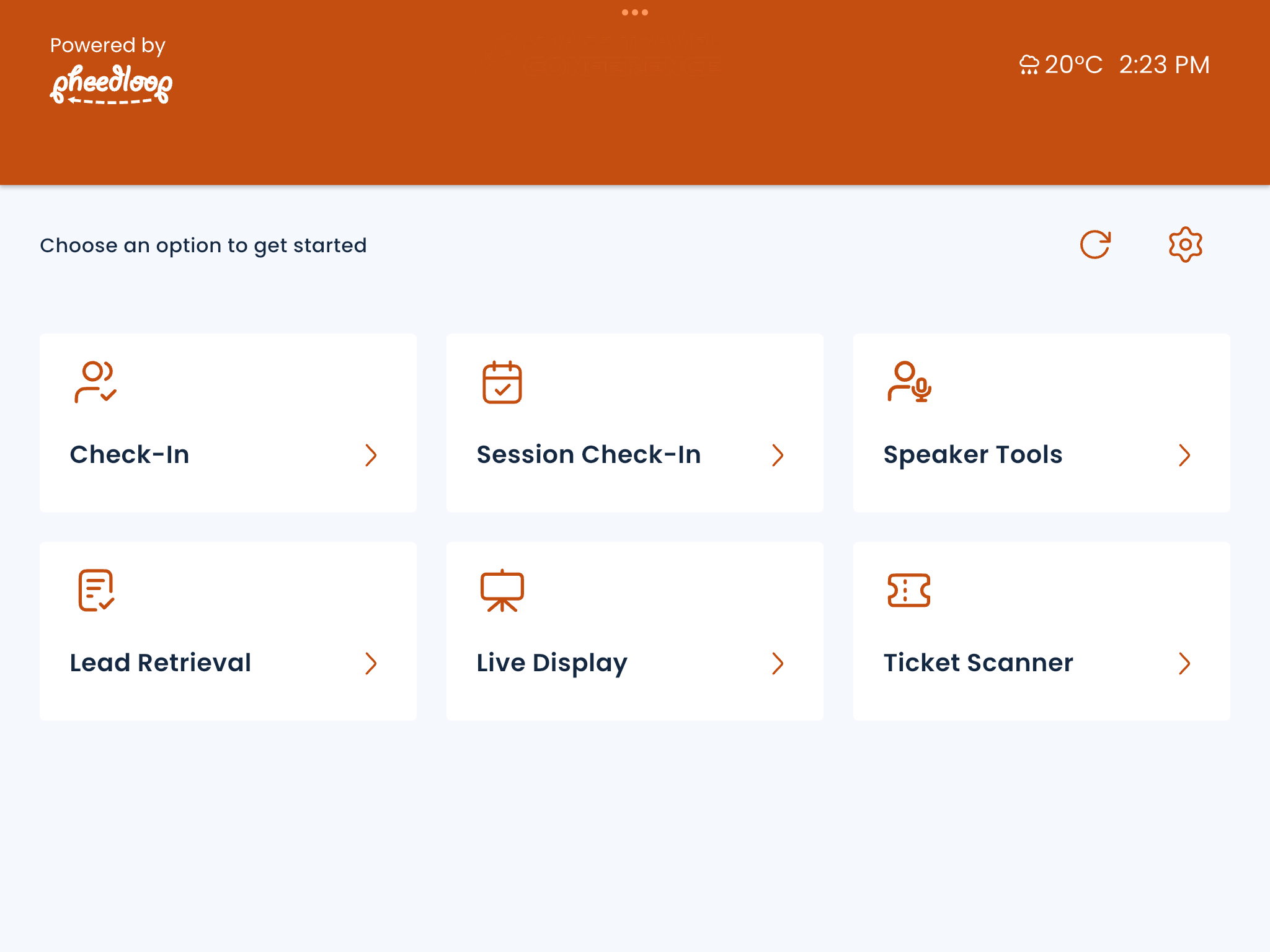
From the OnSite Portal, navigate to Speaker Tools
-
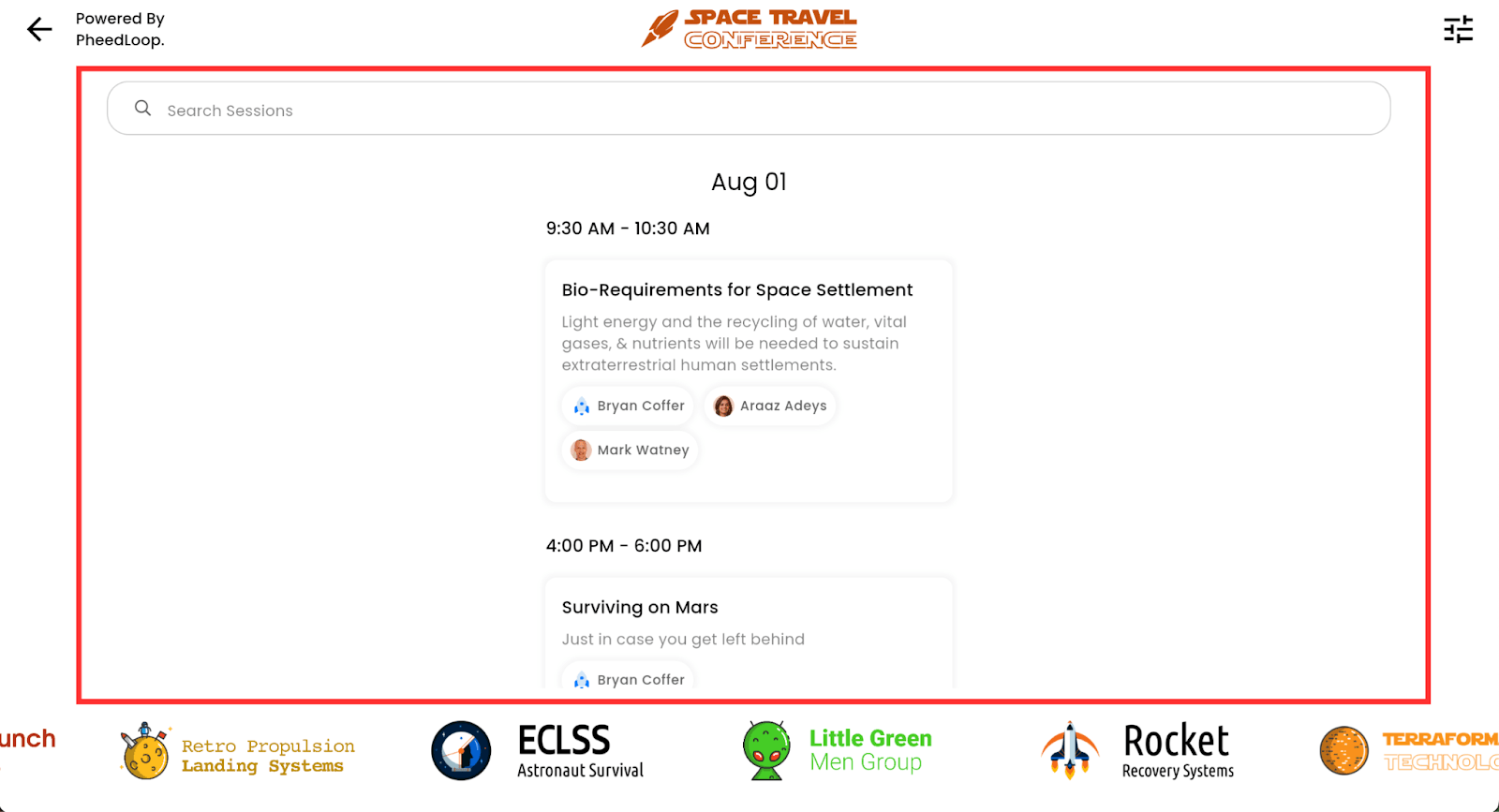
Select the session you would like to use
-
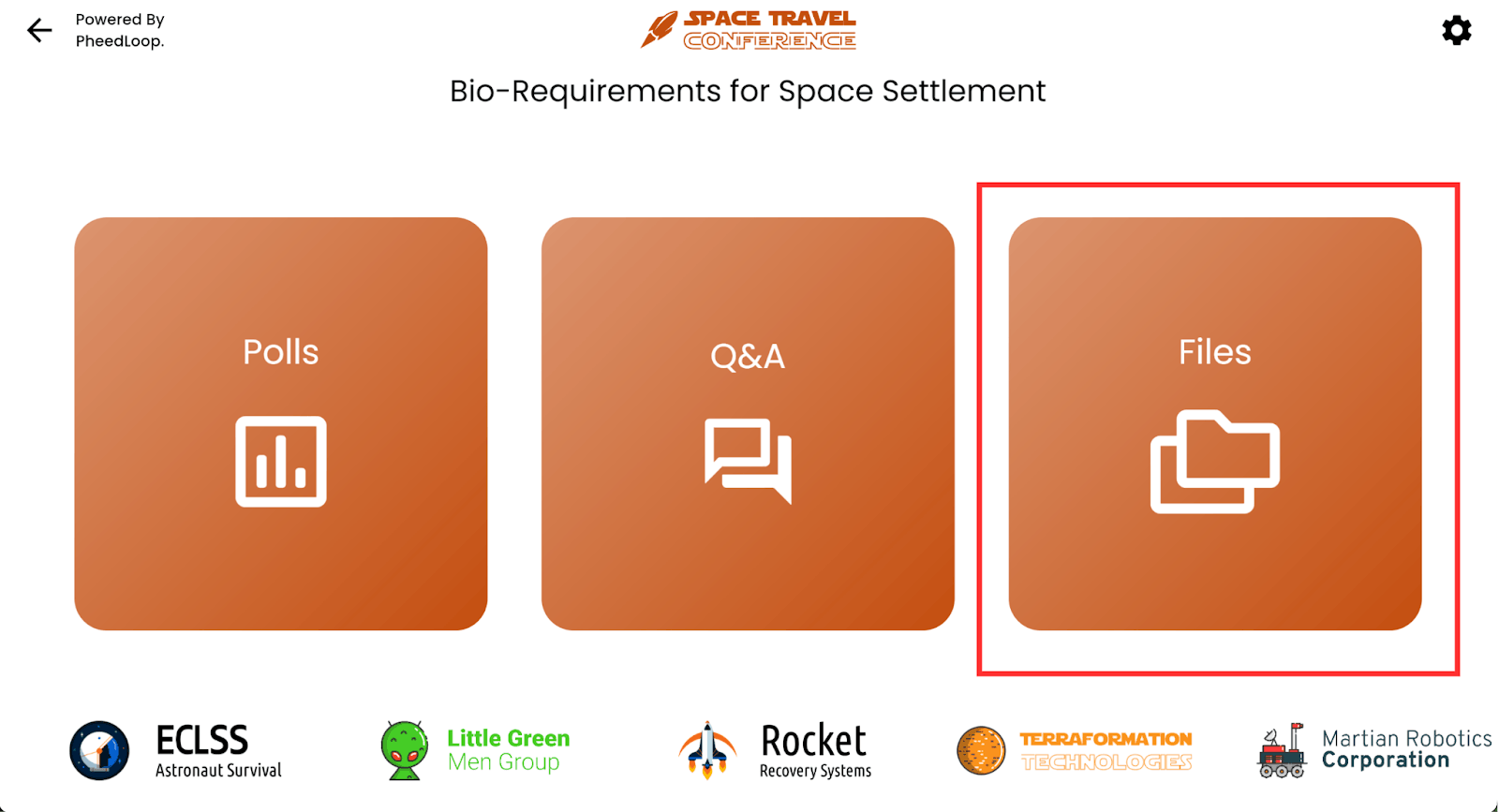
Select Files
-
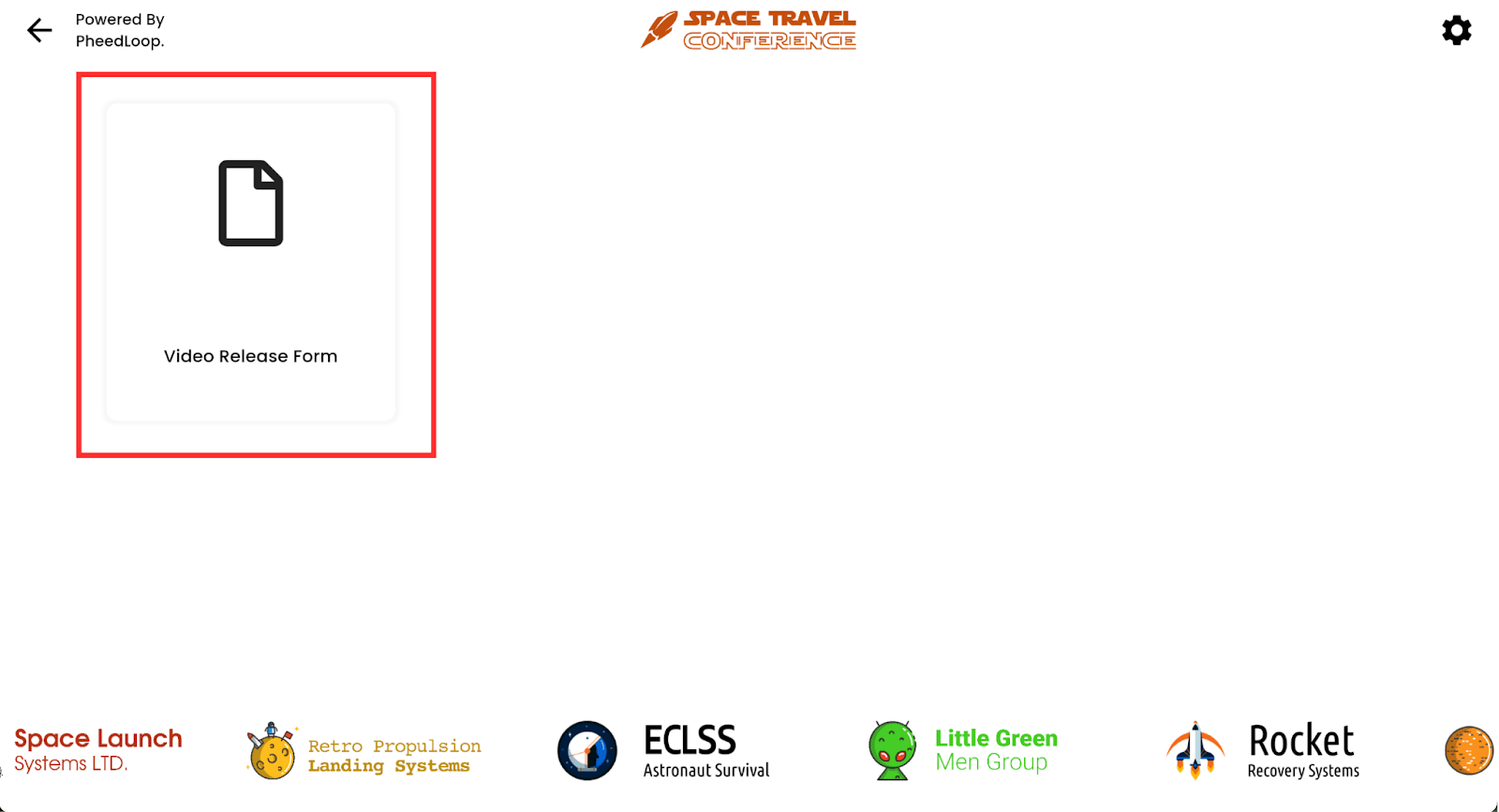
Select the file you would like to open from the list
Live Polls
PheedLoop OnSite allows speakers to create and manage live polls during their session, giving attendees a way to respond in real time. Use the steps below to set up and launch a poll from your session's Speaker Tools.
- From PheedLoop OnSite, navigate to Speaker Tools
- Please note, in order to access Speaker Tools, the user must be registered as a Speaker for the event and listed as a speaker in the session. Once done, the session’s speaker tools will be available to use.
-
Select the session you would like to use
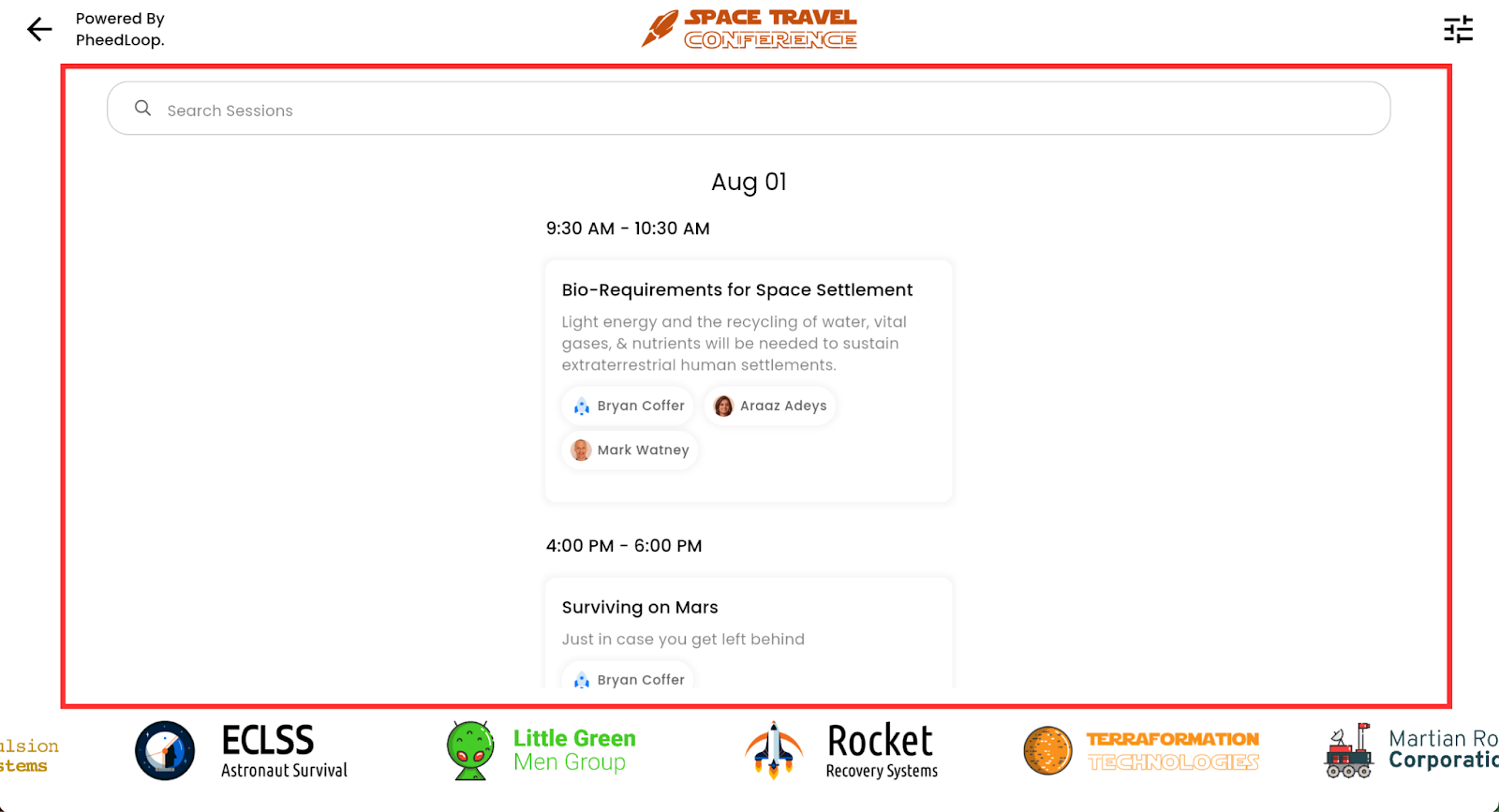
-
Select Polls
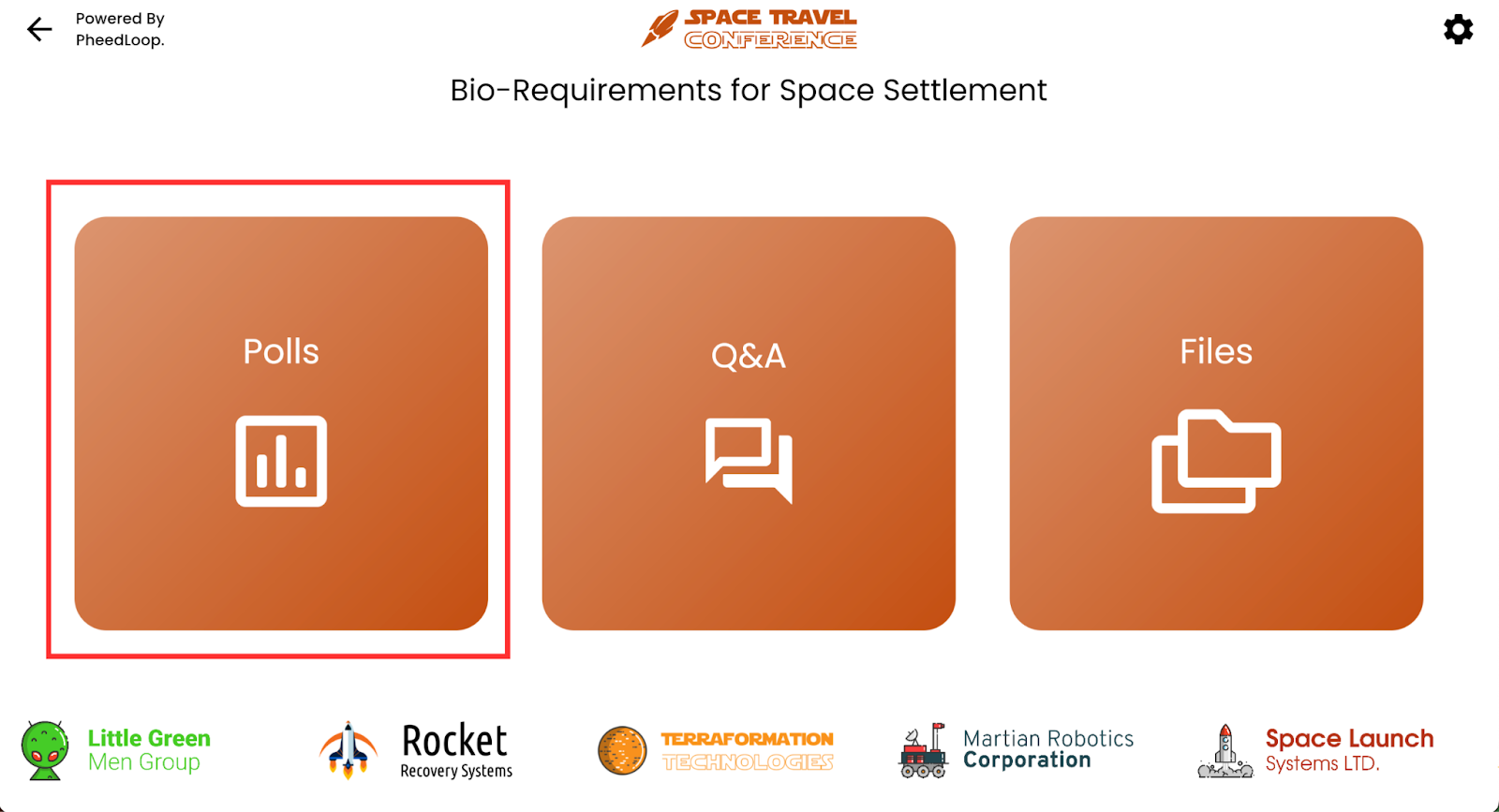
-
Select Create
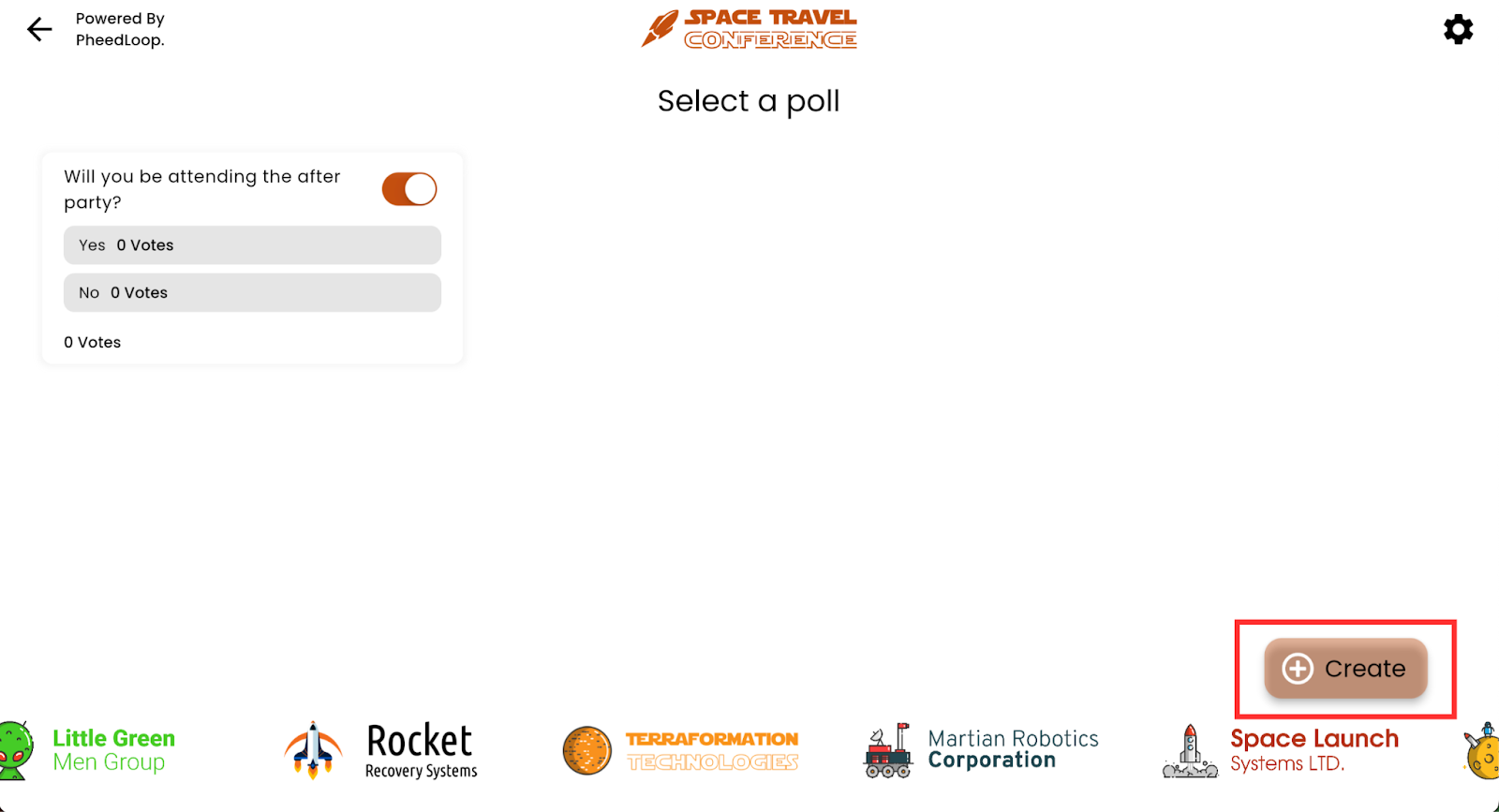
- Under Poll Question, enter the topic you wish to create a poll on
- Under Choices, enter the responses attendees can choose
- For example, “Yes, I agree with this statement,” and “No, I disagree with this statement.”
-
Select Create
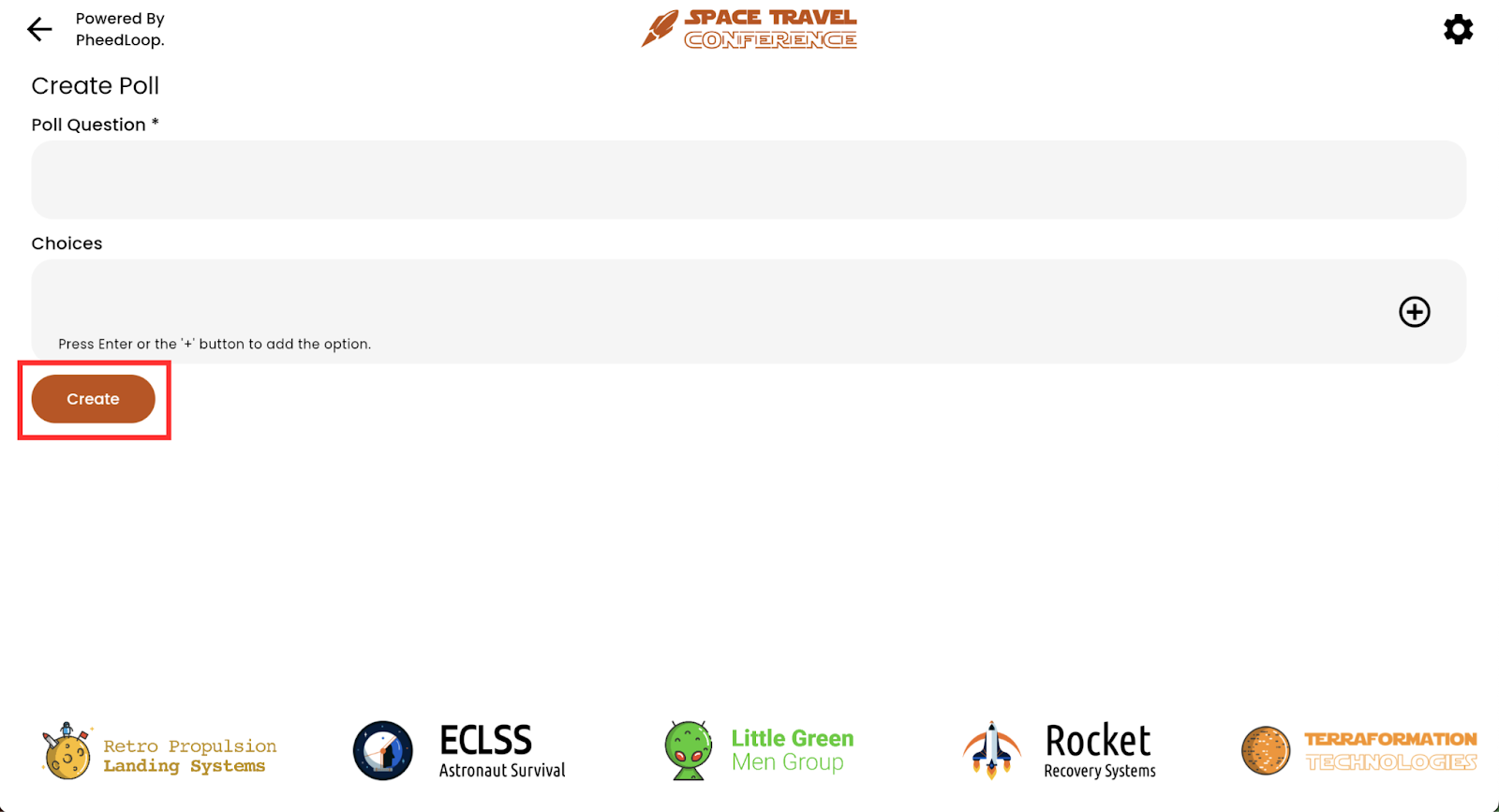
Your question will now be created but will not be displayed publicly. To display your question, select the toggle. If you would like to remove the question, you can either select the toggle again or select the question and then select the Delete button.

Based on the format of your event, you can try different techniques on when the polls should be enabled whether you want it prior to a session, during, or after. The results for these polls will show up in real time as soon as they cast their vote.
Questions and Answers
The Q&A tool in PheedLoop OnSite lets speakers view and respond to audience questions submitted during a session. Use the steps below to access and reply to questions from your session's Speaker Tools.
-
From PheedLoop OnSite, navigate to Speaker Tools
-
Select the session you would like to use
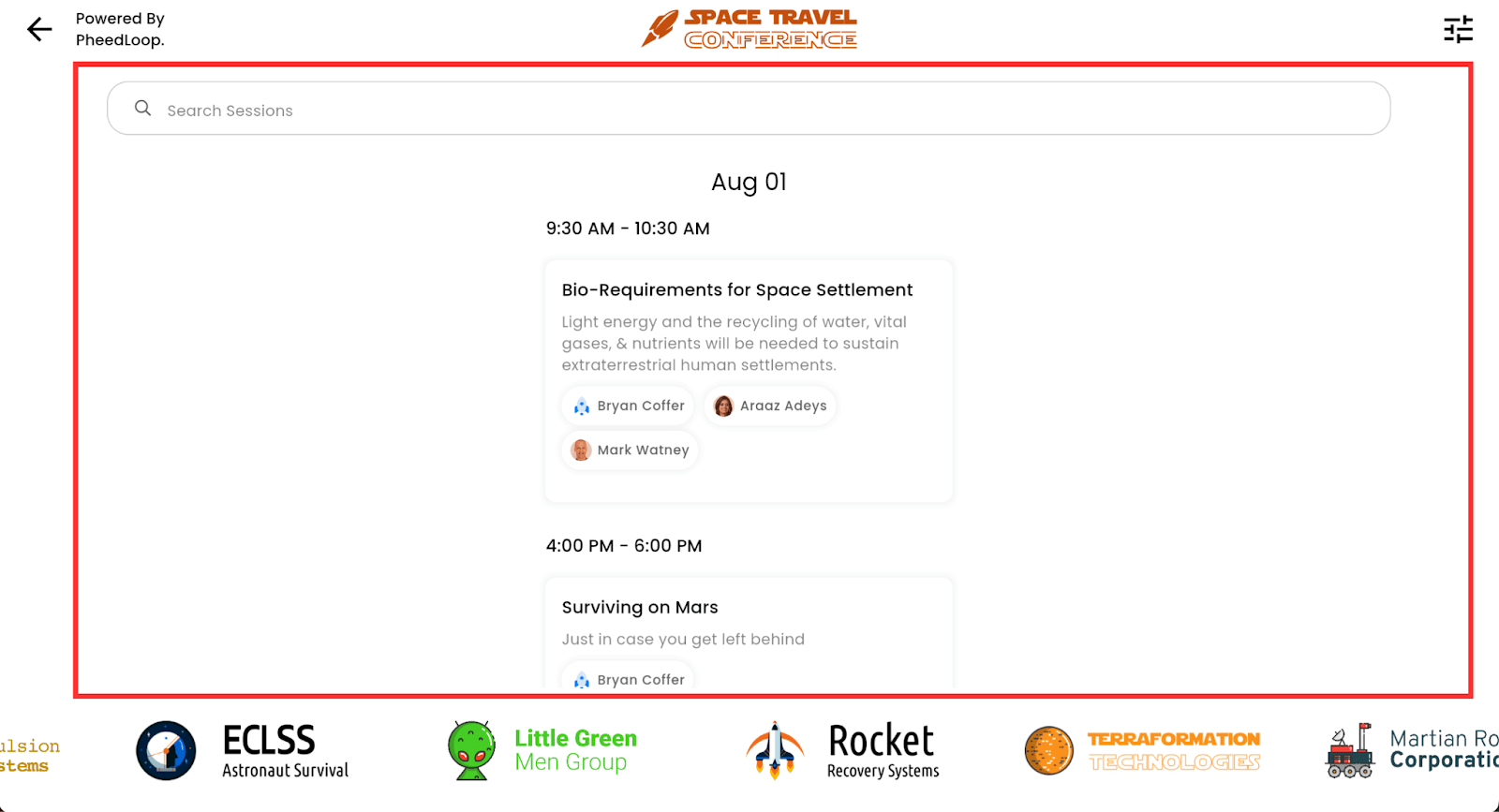
-
Select Q&A
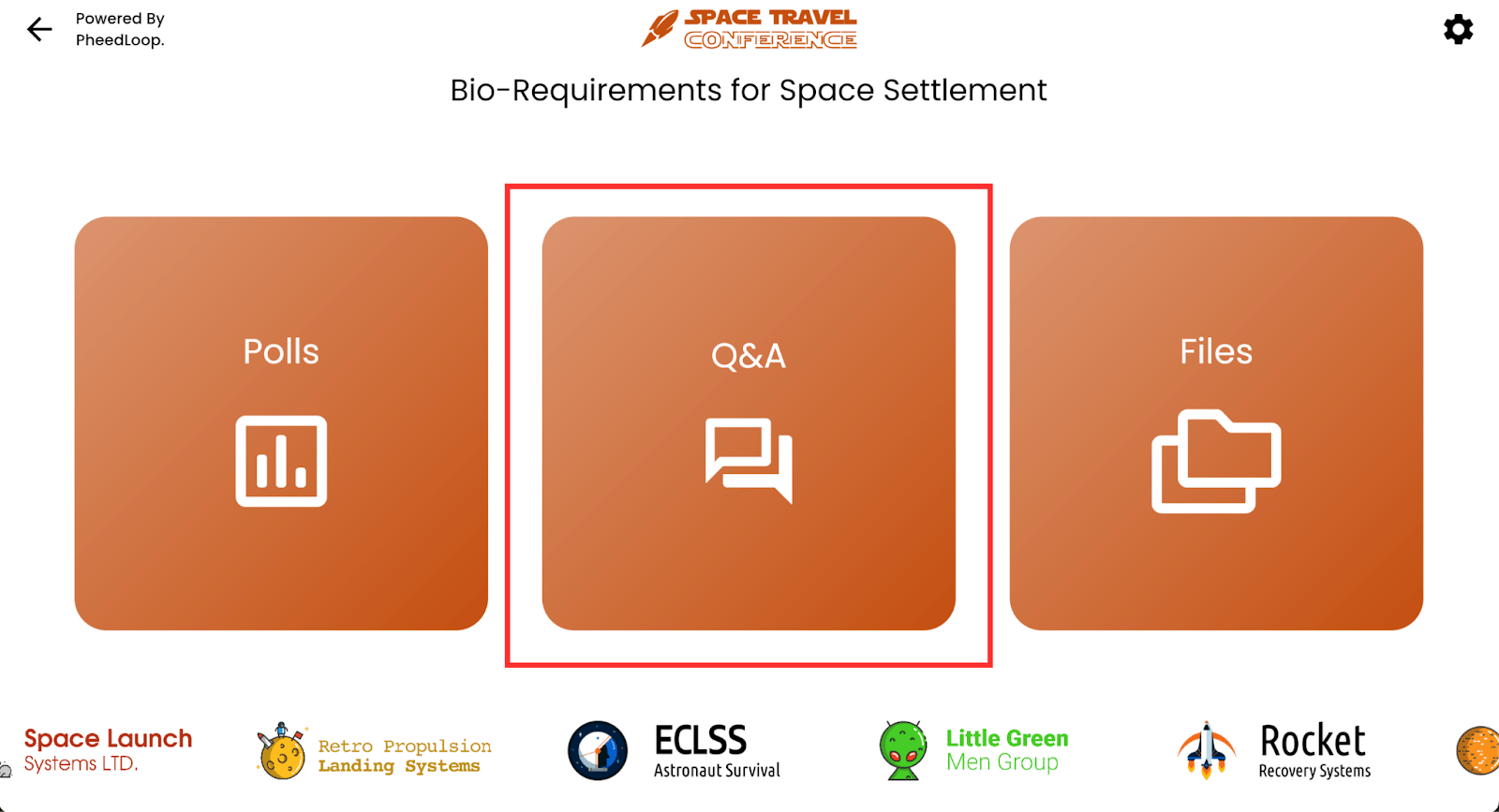
- Enter your answer under Start answer here...
-
Select the arrow icon to the right of the text box
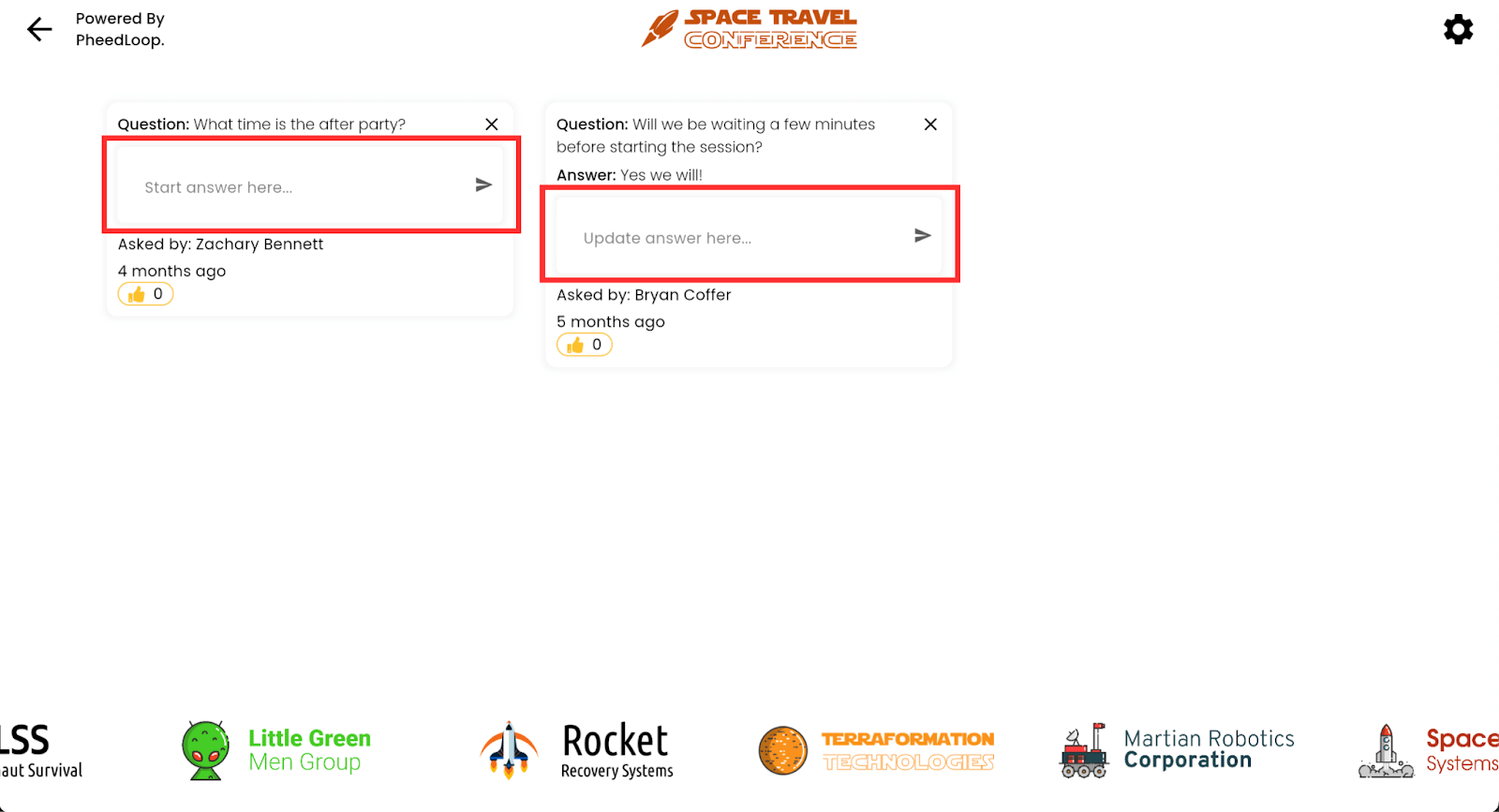
Questions can also be removed by selecting the X button on the top right of the question.