Customizing the Visual Layout of your Kiosk's Check-in Experience
A great onsite experience starts with cohesive branding. PheedLoop OnSite allows you to customize the visual layout of your self-check-in kiosks and displays to match your event's unique identity.
This article will guide you through updating your brand colors, adding welcome banner images, and highlighting your event sponsors on your OnSite displays.
Customizing UI Color
Align the OnSite interface with your organization's branding by updating the primary color. This ensures attendees recognize your organization right from the check-in process.

You can customize the color of your user interface in the Event Dashboard.
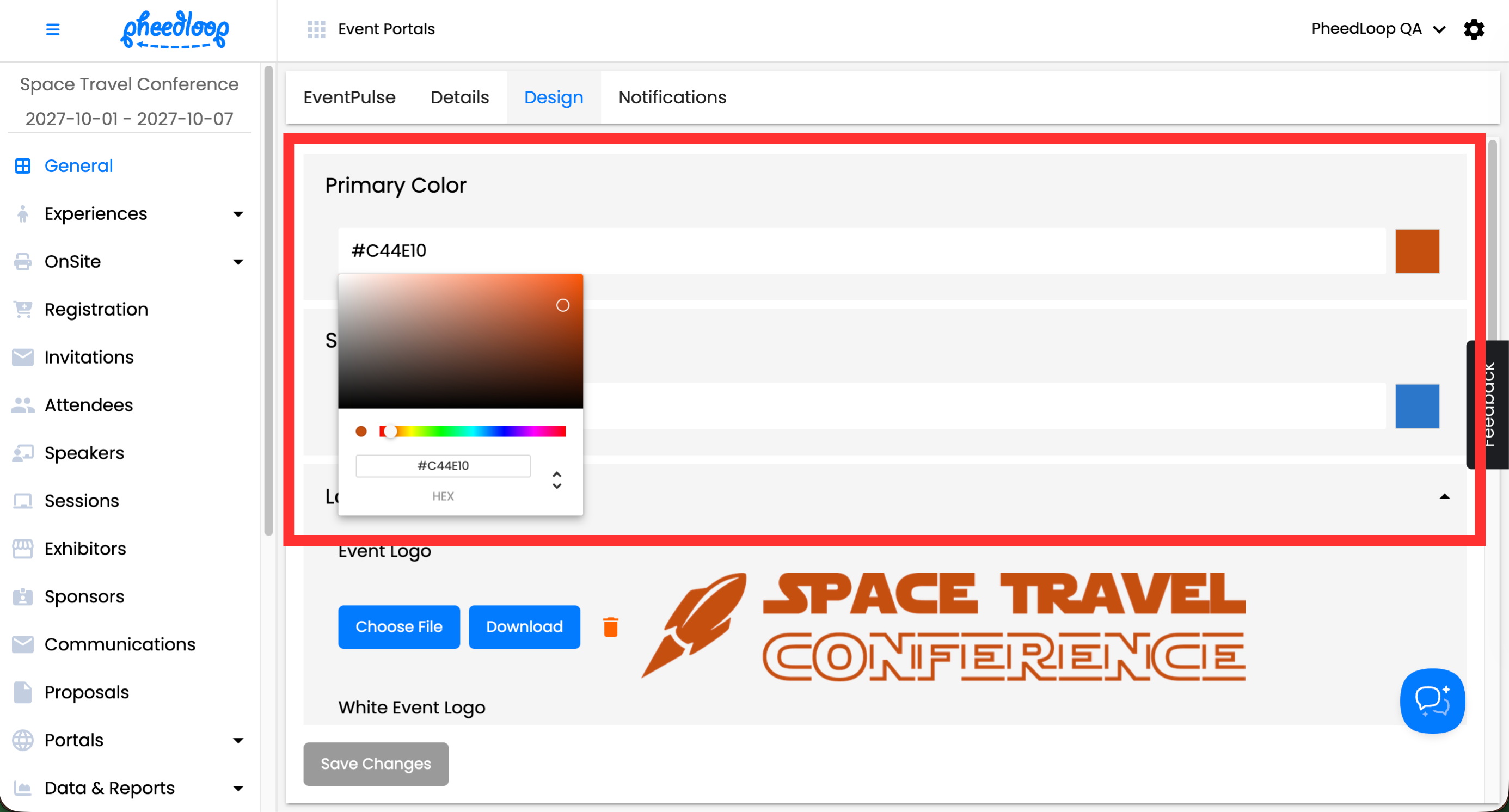
- From the Event Dashboard, navigate to General > Design
- Under Primary Color, enter your desired color as a hex code
- You can also select the color square to open a color picker menu if you prefer a more visual approach.
-
Select Save Changes
Please note, Secondary Color will not have an effect in PheedLoop OnSite.
Images
Event Logo
Your Event Logo appears at the top of the PheedLoop OnSite app, remaining visible on every page.

To upload your Event Logo:
- From the Event Dashboard, navigate to General > Design
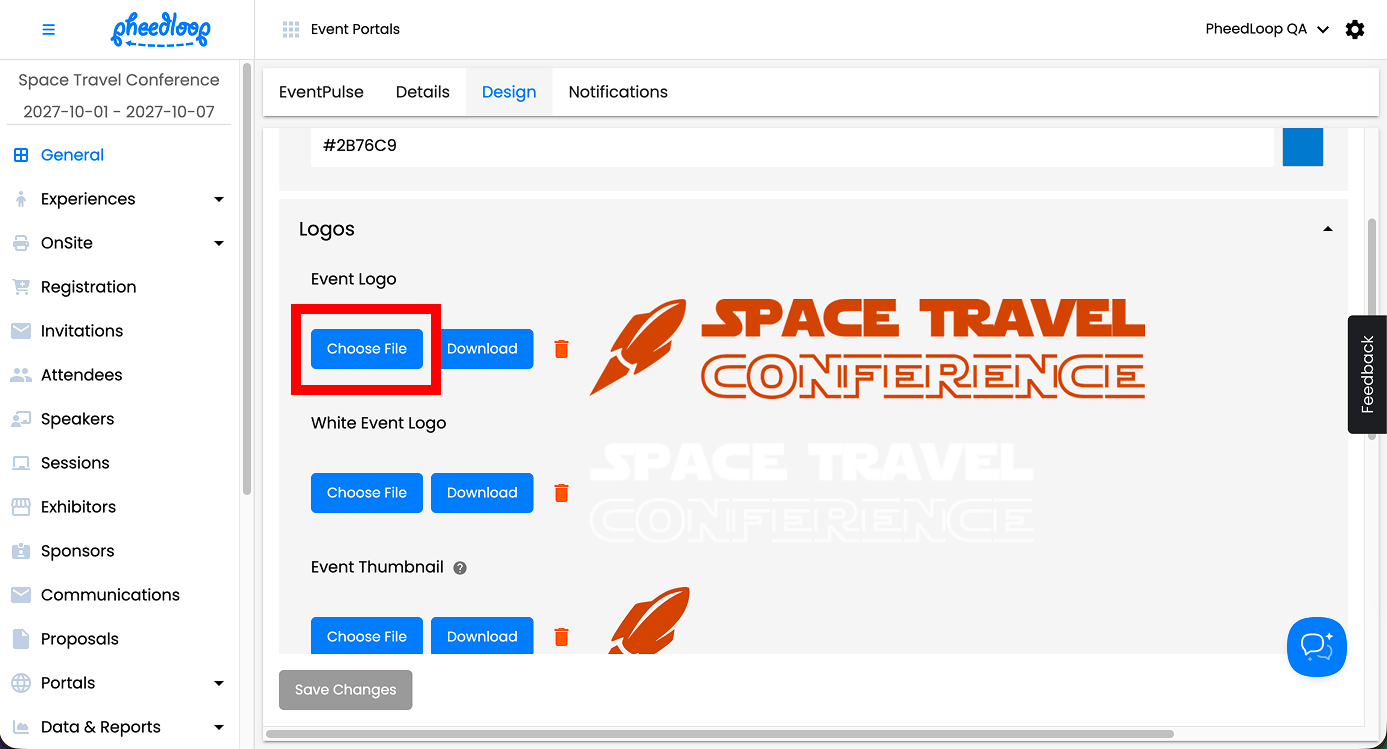
- Scroll down to Logos
- Under Event Logo, select Choose File to upload your image
-
Select Save Changes
Check-In Kiosk Banner Image
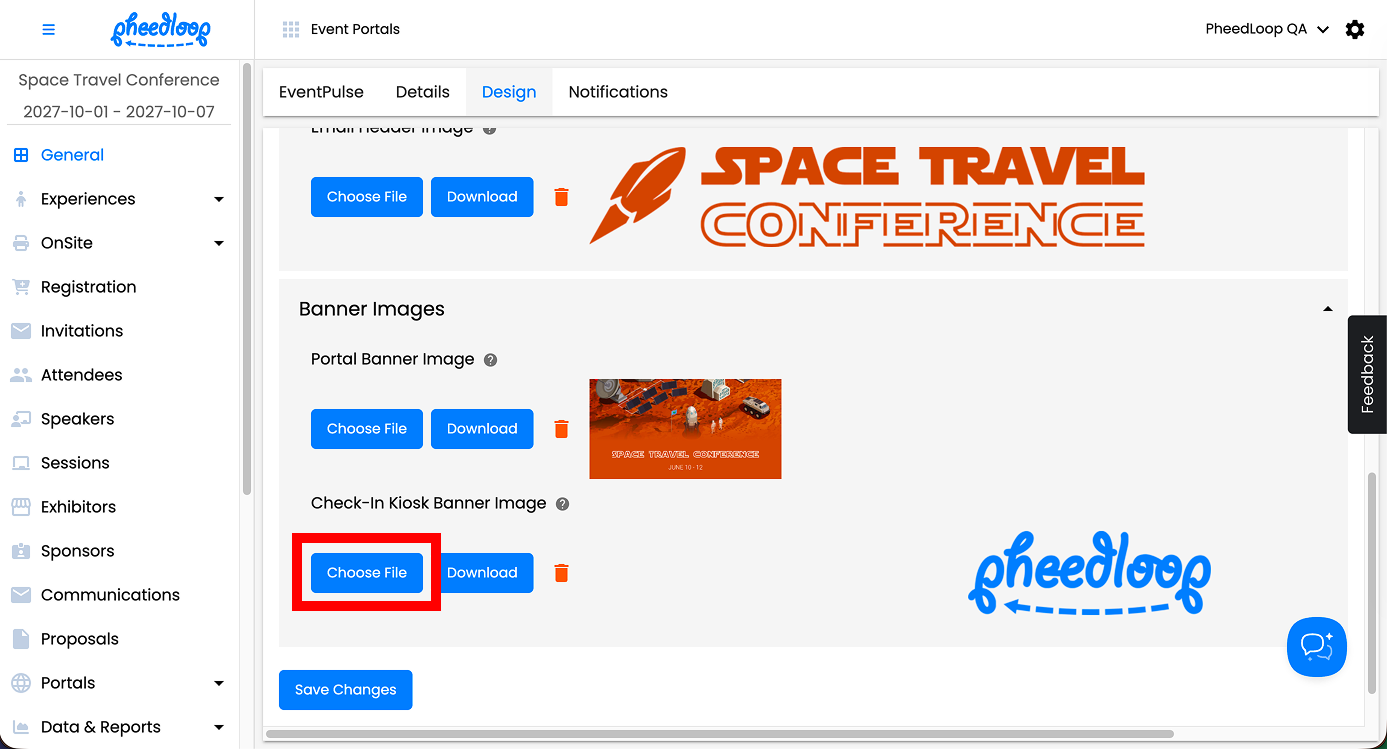
The Check-In Kiosk Banner Image setting lets you display a custom graphic at the top of the Check-In page. This image overrides the standard Event Logo specifically for this page. If you don't upload a banner, the page will default to the Event Logo.

You can customize this image in the Event Dashboard.
- From the Event Dashboard, navigate to General > Design
- Scroll down to Banner Images
- Under Check-In Kiosk Banner Image, select Choose File to upload your image
-
Select Save Changes
Sponsors
You can configure sponsors to display in the Event Dashboard, effectively showcasing them to attendees as they check in. The sponsors will appear as a rotating carousel at the bottom of the screen.

Before sponsors can appear on PheedLoop OnSite, they must have a Sponsor Logo
- From the Event Dashboard, navigate to Sponsors > Sponsors
- Select the Sponsor you wish to adjust from the list
- Scroll down to Design
- Under Logo, select Choose File to upload the sponsor logo
-
Select Save Changes
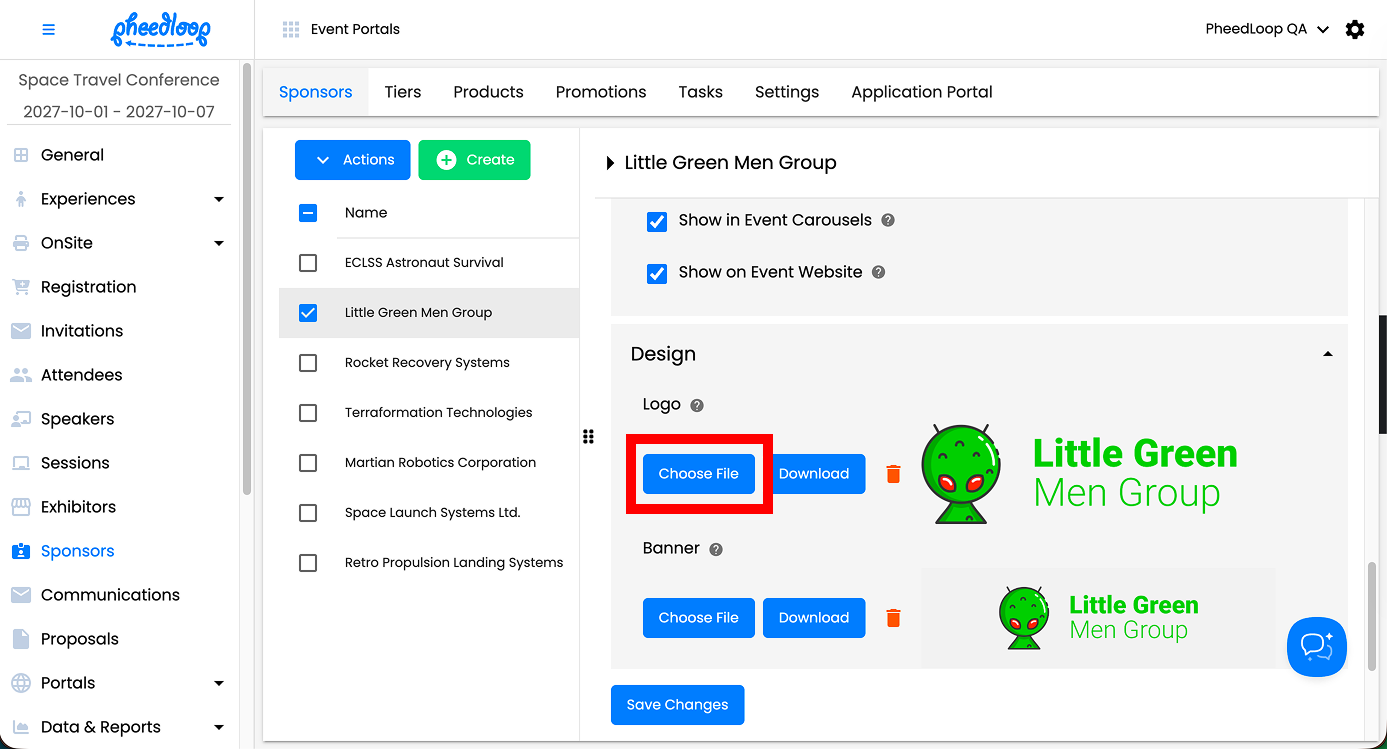
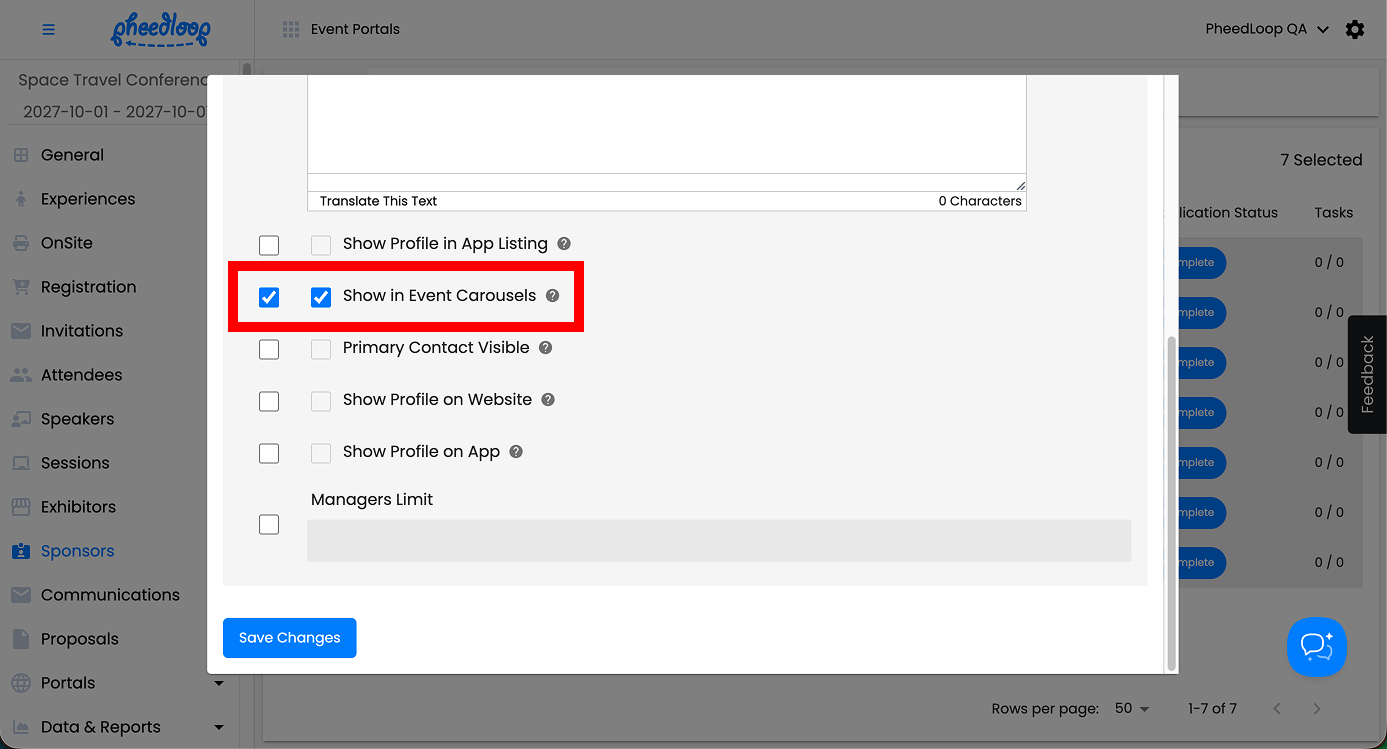
If you would like to exclude the sponsor from the list, toggle off Show in Event Carousels.

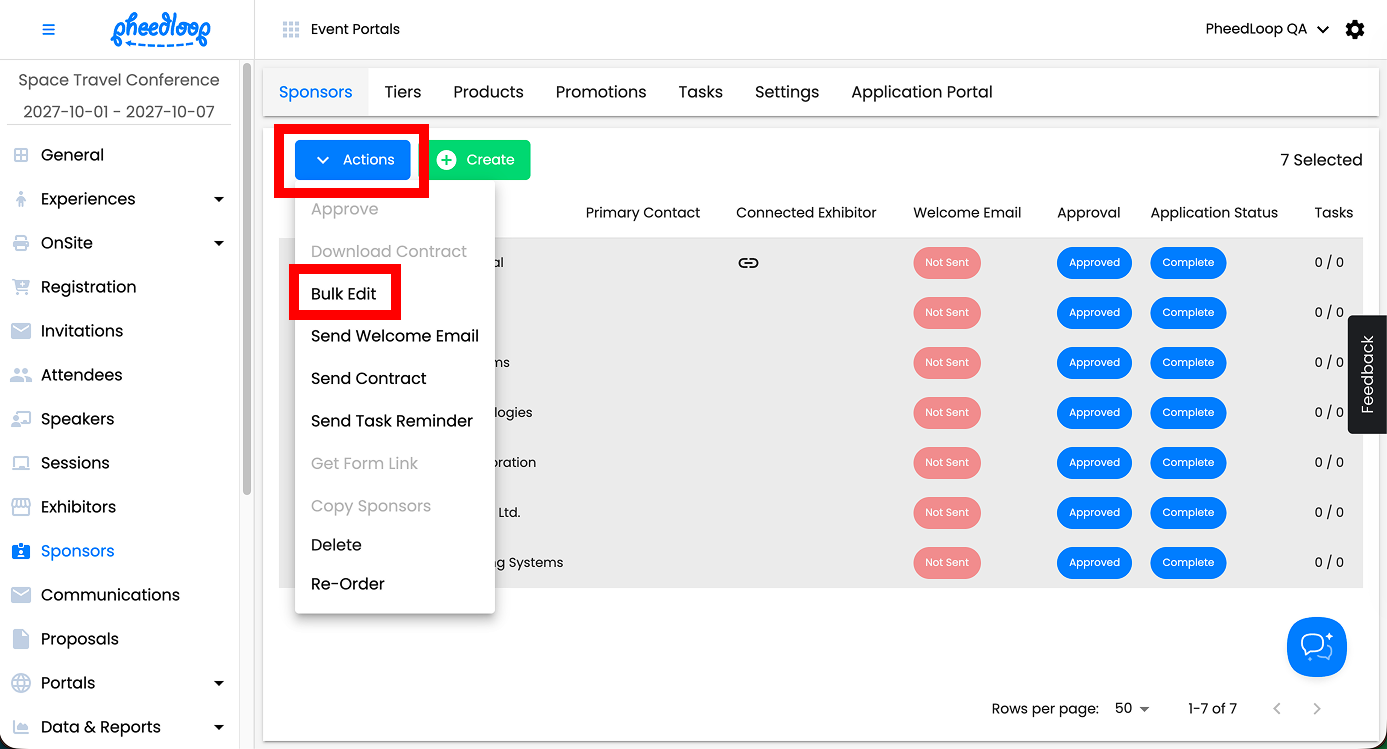
You can do this for multiple sponsors by utilizing the Bulk Edit feature.
- From the Event Dashboard, navigate to Sponsors > Sponsors
- Select the sponsors you wish to adjust from the list
-
Above the Sponsors table, select Actions > Bulk Edit
- For Show in Event Carousels, select the left checkbox
- Leave the right checkbox blank if you wish to remove the sponsor from the carousel. Enable the right checkbox if you wish for them to be included.
-
Select Save Changes